
4 common PC problems you can fix yourself
Computer problems may seem immensely complicated at first glance. But some are relatively easy to fix.

|


That doesn't mean they will be cheap if someone else does the job. Replacing a hard drive is probably a minimum $250-$300 job at a computer shop.
However, some jobs can be done by the average Joe or Jane. On a scale of 1 to 10 (where 10 should only be performed by certified technicians who have no less than three electronic gadgets on their belt), replacing memory is usually about a 4. Installing a new hard drive is tougher (about 6 or 7), but still do-able. Replacing a video card or internal modem is no more than a 2.
A word of caution: Static electricity can kill the circuitry inside your computer. Before you reach for anything inside that box, ground yourself by touching the metal computer frame.

Here are four common PC problems you may be able to fix by yourself:
1. | You turn on the computer and nothing happens. No lights, no beeps, no fan noise. What is the first thing you do? Be sure the darn thing is plugged in! Even if you're absolutely certain that it is connected, double check. Assuming that it is plugged in, you probably have a bad power supply. This is a metal box located in the top and back of the computer. It is usually held in by four screws and the power cable connects to it. A fan blows air out the back. A wiring harness exits the power supply inside the computer. Numerous power connectors are attached to the ends of the wires. These plug into drives, fans and possibly other gizmos. The harness also will have connectors to the motherboard. It doesn't matter which wire connects where, as long as the connector fits. When you open the computer, this mess of wiring can be very intimidating. Study it, and you'll find it less mysterious. Note the connections in writing, if necessary. Disconnect the wires and remove the power supply. Take it to the computer store and get a replacement with the same wattage. Figure on spending $50-$70. |
2. | The computer comes on, but nothing appears on your monitor. In other words, Windows never shows up. You may have a monitor problem. Try using another known-good monitor on the computer and see if anything shows up on the screen. If the second monitor works, the first one is bad. Monitors are not worth repairing. Just buy a new one. Never open the back of a monitor to fix it. The capacitors inside monitors store electricity. You could be injured or even killed. If the screen is dark, it could be a video card problem. First, find the video card. This is a circuit board that fits into a slot in the motherboard. The cable from the monitor connects to the VGA (video graphics adapter) port, which sticks out through the back of the computer. If the VGA port is part of the motherboard, the video is built-in. You can't fix that. Otherwise, it will be part of the video card. Assuming you have a separate card, be sure it is firmly seated. The front end of the card can rise out of the slot inadvertently when the back end is screwed down to the computer frame. If you have a computer that is working perfectly, turn it off and remove the video card. Put the card that works in the problem computer. If the system works, you need a new card. If you don't have an extra card to test your system, buy a cheap one ($30-$50). If it doesn't solve the problem, take it back. You can spend hundreds of dollars on a video card. But if you're running business applications and surfing the Web, buy on price. The expensive stuff is for serious gamers. |
3. | If you regularly get the "Blue Screen of Death," you may have a random access memory (RAM) problem. Note the message on the blue screen, especially the numbers. Check it in Microsoft's Help and Support Knowledge Base. Also, put the text of the error message in a search engine and check the Internet. Assuming you can diagnose it, a memory problem is easy to fix. If you can't find the diagnosis information you need online, you can try swapping out memory sticks from another computer. But that memory must be the same type. If all else fails, take the old memory to a computer store. The people there may be willing to test it. Sticks of memory go in slots near the microprocessor. They're about four inches long. Remove the old memory and match it at the store. Memory prices are all over the map, depending on type and speed. Be sure you get the same type. When you press the new memory into the slot, you will probably have to use some force. The clips on each end will snap into place when the memory is seated properly. |
4. | If you boot up, and the computer cannot find the C: drive, you might have a bad hard drive. If you have another computer, swap hard drives to diagnose the problem. If your computer boots with the other drive, yours is probably bad. Sometimes, a reboot will work. Your drive might have enough life to spin up occasionally. If this works, transfer your data to another drive, pronto. According to techie lore, you can seal a nonworking drive in a bag and put it in a freezer overnight. That could shrink things enough to free them up. I've used this trick a few times and it's worth a try. A regular backup regimen will save you in case of hard-drive failure, assuming you aren't backing up to the same hard drive. If the drive is dead and you don't have a backup, a computer shop may be able to save your data. Hard drives are cheap. You can get a replacement for less than $100. Get one boxed for retail, which will include instructions and any hardware needed. Your hard drive is in the front of your machine. It will be about the size of a paperback book and is probably held in by four screws, two on each side. Power and ribbon cables connect to the back. Put the new drive in and install it as the master. Reconfigure the old drive as the slave. The instructions that come with the new drive should explain that. Boot the computer and install Windows on the new drive. If you're lucky, the computer will see the old drive (it will be D:). You can then transfer your data to the new drive. Replacing a hard drive is more difficult than the other operations. However, if you pay to have the work done, it may not be cost effective. You might be better off buying a new machine. So if you are adventuresome, and you have the time, changing the hard drive may be worthwhile. |
Know your limitations
Some things may be beyond your ability. For instance, upgrading a microprocessor can be dicey. Even if a faster microprocessor will fit in your motherboard, you probably need to upgrade the BIOS (Basic Input Output System). This is done through a process called "flashing," in which information is downloaded to change the BIOS. If flashing isn't done correctly, the computer can be rendered useless. Leave that to the experts.
There are times when fixing a computer just isn't worthwhile. New machines can be had for less than $500. That might be all you need for business purposes. So, if you're facing a $300 repair, maybe it's time to look around. That repair probably won't be the last.
After this column first appeared, I received a helpful note from a computer technician. He said businesspeople should be careful about buying inexpensive home machines. Business buyers probably need a better warranty, including next-day service and maybe a loaner. Also, you need some kind of backup mechanism -- perhaps a CD burner, a DVD burner, a second hard drive, and so on. Saving money is good, but be sure you get what you need.
tep 1: Know Your System
| The first preventive step you need to perform is to take an inventory of your computer system. This information will be vital if you later have to contact technical support or have your system serviced. Start by noting your serial number and model number. With this information, your system manufacturer can determine the components of your system. If you've added components to your system, note the model and version numbers of the components. You'll find this information in the documentation that accompanies add-on hardware. A definite must-have program to complete a system inventory is Belarc Advisor, a free program showing a detailed profile of your installed software and hardware, missing Microsoft hotfixes, anti-virus status, CIS (Center for Internet Security) benchmarks, and displays the results in your Web browser. |
Beyond these basics, you need to get details of your system's configuration. On Windows PCs, this means copying and printing a few important system files that will come in handy if you later have a problem or need to speak to a tech-support person. The simplest way to preserve your system configuration files is to run the Sysedit program. With Windows 95/98/ME, click on Start, RUN, type SYSEDIT in the blank window, and click OK. It will bring up all your system files -- from AUTOEXEC.BAT to SYSTEM.INI -- in Wordpad windows. From there, you can save them to a floppy disk and print them out. In Windows 3.1, you'll find the Sysedit icon in the Main group. With Windows XP/2000, you can go into Accessories, System Tools, System Information to find and print this important data.
If you own a Mac, you don't need to copy system files, but you should make a list of all the INIT and CDEV files -- collectively called system extensions -- that load on start-up. Conflicts among these files are a common source of program crashes on Macs. You can see a list of these files using the Extensions Manager Control Panel, which also lets you turn off one or more extensions so that, by process of elimination, you can identify which one is causing you problems. One limitation of Extensions Manager is that it doesn't let you print a list of extensions. If you want a list, you have to print the Screen.

| Windows Genuine Advantage is Microsoft's not so subtle crackdown on illegal piracy of Windows XP and Microsoft Office products. Microsoft started with an ActiveX component to force owners of Windows XP to validate their version before downloading security updates. Unfortunately this particular scheme was rather easily foiled by groups on the net and workarounds appeared almost instantly including cracked files and javascript fixes. Now Microsoft is becoming more advanced in their attack on pirated versions of Windows XP or Microsoft Office. They are including a Windows Genuine Advantage security patch in the updates of Windows XP. The newest patch, released the first week of June 2006, actually produces popups on the login screen and on the desktop explaining that this version of Windows XP is not genuine and the owner may be the victim of software counterfeiting. If your version of Windows XP is not genuine and does not pass the validation schemes, you will not be able to download security patches from Windows Update, or install the latest version of Internet Explorer 7 and other software. For those users that do have a valid version of Windows XP, Microsoft offers some special promotions. |
 |
 |
Important Microsoft Pages
Microsoft Genuine Advantage – Diagnostic Site
Windows Genuine Advantage Diagnostic Tool
What Can I Do If My Version of Windows XP Does Not Validate?
Microsoft is offering a variety of options to customers who unknowingly purchased a counterfeit copy of Windows XP. Customers can submit a proof of purchase, the original counterfeit CD, and fill out a report with the details of the purchase and Microsoft will give the customer a complimentary copy of Windows XP. However only high-quality counterfeit Windows versions will qualify for this copy.
For customers who received a computer from a friend, off the Internet or another way and an illegal version was installed, the only option is to buy a fully licensed version. Microsoft is offering the Windows XP Home Edition license kit for $99.00 to customers, while the XP Pro Edition is $149.00. The Windows Genuine Advantage Kit for Windows XP will include a new 25-character Product Key and a Windows Product Key Update tool that will allow customers to convert their counterfeit copy to genuine Windows XP electronically.
The other option is of course to buy a legal version of Windows XP off the Internet or in a retail store. Generally the prices for these versions will be more than the price Microsoft is offering for their Windows Genuine Advantage Kit. Although there are some internet sites like Newegg.com, greatsoftwaredeals.com or edirectsoftware.com that have great prices.
Remember though, if you purchase an OEM or full edition of Windows XP, you'll have to format and reinstall your operating system. You can however purchase an Upgrade edition and change a pirated version to a fully licensed version. Just be sure you have a previous version of Windows (95,98,ME) in case you need to completely reinstall Windows XP someday. Also one other note, if you currently have XP Pro (pirated), you'll need to purchase the XP Pro Upgrade to upgrade your system. XP Home can only upgrade the Home Edition, where XP Pro can upgrade both the Home and Pro versions. Hopefully, that's clear enough to understand.
The other option of course is to go through Microsoft's site and purchase a software key. They will send you a program to upgrade the counterfeit version to a legit version.
I Have A Legal Copy of Windows XP,
but My Computer Still Fails Validation, What Now?
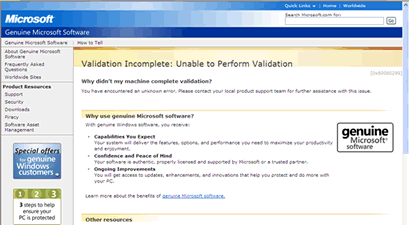
First of all, your computer may not be properly configured to allow the validation process to complete. For this reason, one of the first things you'll want to do is click on the link below to check your computer's configuration and fix any problems that may exist. After checking for problems, you can click on a link to validate Windows.
Microsoft Genuine Advantage – Diagnostic Site
If your computer checks out ok, you may be experiencing one of the following issues.
The Security Update for Windows Genuine Advantage (KB905474) fails to install.

There are two possible solutions here. One is caused by a permissions problem in the registry. To fix this issue, follow the steps below:
1. Click Start, and then click Run
2. In the Open box, type regedit, and then click OK
3. Expand HKEY_CLASSES_ROOT
4. Locate the subkey HKEY_CLASSES_ROOT\LegitCheckControl.LegitCheck
5. Right-click the subkey and select Permissions….
6. Ensure that Administrators allowed Full Control permission
7. Repeat steps 3-6 for the subkey
HKEY_CLASSES_ROOT\LegitCheckControl.LegitCheck.1If this does not fix the issue with KB905474 update not installing, download the update to your desktop and manually install it.
1. Click on the link below to download the KB905474 update manually
2. On the File Download Window, click Save and choose to save the file to your desktop.
3. After the file downloads, go to your Windows desktop and double-click on the file named
windowsxp-kb905474-enu-x86_4bafa8793e8cdcaf4ba4ffc494df32d496154544.exe
4. Follow the instructions on the screen to install it
5. Reboot your computer and go to Windows Update to check if the update as installed successfully.
Another reason why the validation may fail occurs when the ActiveX control for the Windows Genuine Advantage Validation Tool has been disabled. Follow the steps below to make sure the ActiveX is enabled.
1. Open Internet Explorer
2. Click on Tools, Internet Options
3. Click on the Programs tab
4. Click on the Manage Add-ons button
5. Find the Windows Genuine Advantage Validation Tool and click on it
6. Verify the Add-on is enabled, if it is not. Click Enable and Ok twice to exit back to Internet Explorer.
7. Close Internet Explorer and reopen it. Now try to validate Windows again.
A third error deals with Cryptographic Errors. If you are receiving the following information when running the WGA diagnostic tool, the problem is generally with corruption in the digital signatures of some files and they will have to be reregistered.
Diagnostic Report (1.5.0545.0):
-----------------------------------------
WGA Data-->
Validation Status: Cryptographic Errors Detected
Follow the steps below to resolve these cryptographic errors.
1) Click on Start, click on Run
2) In the Open box, type CMD and then click OK.
3) At the command prompt type the following command and Press Enter
regsvr32 softpub.dll
4) You should receive a message that DllRegisterServer in Softpub.dll succeeded, click OK
5) Repeat Steps 3 and 4 to re-register the following files
- wintrust.dll
- initpki.dll
- dssenh.dll
- rsaenh.dll
- gpkcsp.dll
- sccbase.dll
- slbcsp.dll
- mssip32.dll
- cryptdlg.dll
7) Restart Windows and try to authenticate Windows again.
A fourth error message you may receive when trying to validate Windows XP is
"Product Key Inaccessible" and "0x80080212" error
This error message occurs when you do not have appropriate permissions for the DATA folder for Windows Genuine Advantage. Follow the steps below to fix this issue or click on the link above for the Microsoft article concerning this problem.
Windows XP Professional or Windows XP Home
1. Click Start, click Run, type the following in the Run dialog box, and then click OK:
%systemdrive%\Documents and Settings\All Users\Application Data\Windows Genuine Advantage.
2. Right-click the Data folder, and then click Properties.
3. On the Security tab, click Users (username\Users) in the Group or user names section. If the Security tab is absent, you'll need to follow these steps as well.
- Open My Computer
- Click on Tools
- Click on Folder Options
- Click on the View tab
- Uncheck the option for "Use Simple File Sharing"
- Click Ok and go back to Step 2 above and try again.
4. In the Permissions for Users section, make sure that each check box in the Allow column is selected for the following permissions:
• Read & Execute
• List Folder Contents
• Read
5. Click OK, and then restart the validation check process.
If the previous steps fail, start the computer in Safe Mode and try the procedure again.
If you experience other error messages or problems with the Windows Genuine Advantage, please email me so I can add these to the list.


1 comment:
Good one on "IS YOUR COMPUTER NOT FUNCTIONING WELL?????FIX UR PROBLEM IMMEDIATELY!!!!! What is Windows Genuine Advantage?" and it helps a lot.
I have used the AV Planners Inc for all "screen install" and their serivice is the best.
You can know more about them in "http://www.avplannersinc.com/index.php/av-installation".
Thanks,
mark - screen install
Post a Comment